#337: Add a MCP Server to LangGraph
Last week we saw how FastMCP can help us to create a MCP server. In this post we see how we can connect our LangGraph application to an MCP server.
Installation
We need the package langchain-mcp-adapters to connect LangGraph with a MCP server. Let us use this chance to also update all the other packages we need:
Improved MCP Server
While a simple placeholder was enough for last week’s post, this time we want to create something more useful. We need a method that detects the local IP by opening a socket to 8.8.8.8. That way we can find the real IP our device uses and not just the loopback address 127.0.0.1.
With a bit of netsh magic and output parsing we can detect the name of the Wi-Fi network we currently use. While this will not work on Linux or Mac, it is a nice way for everyone who uses Windows.
import socket
import subprocess
import re
from fastmcp import FastMCP

# Initialize FastMCP server
mcp = FastMCP("Network Support Service")

def get_local_ip() -> str:
    """Retrieves the active local IP address."""
    s = socket.socket(socket.AF_INET, socket.SOCK_DGRAM)
    try:
        # Does not actually establish a connection, but triggers routing
        s.connect(("8.8.8.8", 80))
        ip = s.getsockname()[0]
    except Exception:
        ip = "127.0.0.1"
    finally:
        s.close()
    return ip

def get_wifi_ssid() -> str:
    """Retrieves the current Wi-Fi SSID on Windows using netsh."""
    try:
        # Run Windows netsh command to get interface state
        result = subprocess.run(
            ["netsh", "wlan", "show", "interfaces"],
            capture_output=True,
            text=True,
            check=True,
            encoding="utf-8" # or "cp1252" if standard windows encoding causes issues
        )

        # Look for the SSID line in the output
        match = re.search(r"^\s*SSID\s*:\s*(.*)$", result.stdout, re.MULTILINE)
        if match:
            return match.group(1).strip()
        return "Not connected to Wi-Fi (or Ethernet/VPN active)"
    except Exception as e:
        return f"Unknown (Error fetching SSID: {str(e)})"

@mcp.tool()
def get_network_info() -> str:
    """
    Retrieves the current local IP address and the connected Wi-Fi SSID.

    Returns:
        A formatted string with the network details.
    """
    ip = get_local_ip()
    ssid = get_wifi_ssid()

    return f"Current Network Info:\n- Local IP: {ip}\n- Wi-Fi SSID: {ssid}"


if __name__ == "__main__":
    mcp.run(transport="http", host="0.0.0.0", port=8000)
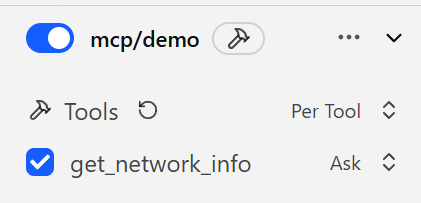
With this code in place, we can run it as we did before and see in LM Studio if it found our new tool:
Connect the LangGraph application
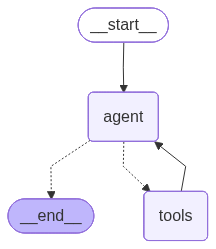
The langchain-mcp-adapters module works asynchronously, that is why we need to switch to the async/await pattern for this example. We build our LangGraph application as we did so often before, but this time we need a client that connects to the MCP server and reads the tool-list from there. We then hand the tool list to our LLM, build our nodes and connect them. Our agent node talks to the LLM and collects all tool calls, that then are handled in the call_tools node.
This gives us this graph:
Run the application
If we now run our LangGraph application, it will fetch the tools from the MCP server, initialises our graph and answers the question with the help of the tools from the MCP server:
--- TOOLS DISCOVERED ON MCP SERVER ---
  get_network_info: Retrieves the current local IP address and the connected Wi-Fi SSID.
--- /TOOLS ---

[agent] calling LLM (messages=1)
[agent] LLM requested tool(s): get_network_info
[tools] executing MCP tool 'get_network_info' args={}
[agent] calling LLM (messages=3)
[agent] LLM produced a final answer (no tool calls)

--- ANSWER ---
**Current Network Info**

- **Local IP address:** `192.***.***.***`
- **Wi‑Fi SSID:** *Not connected to Wi‑Fi* (you’re likely on Ethernet or a VPN).
--- /ANSWER ---
Next
The biggest change to add an MCP server to a LangGraph application is the switch to the async/await pattern. Without that change, most would stay the same as we know from local tool calling.
Next week we explore the topic of multi-agents and see how LangGraph can help us implementing them.