#336: Build a MCP Server With FastMCP
An MCP (Model Context Protocol) server is an open-standard integration that acts as a bridge between Large Language Models and external data sources or tools. That way we can get more specific answers about our data or let the LLM act on our behalf.
We can build our own MCP server with various tools. One of the simplest one for Python is FastMCP, that feels a lot like FastAPI. Let us see what we need to do to run our own tools through a MCP server.
Installation
We can install FastMCP with this command:
First steps
The simplest way to see how FastMCP works is to use the demo application from the official documentation and modify it a little bit:
We can run this demo application with this command:
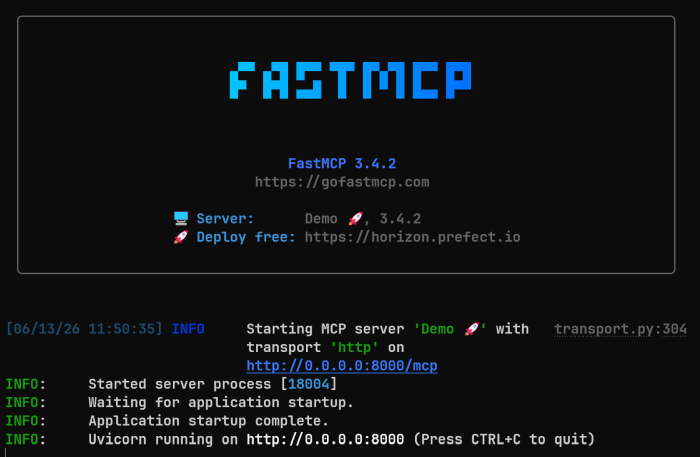
If everything works, we can see this little welcome screen in the command line:
Use the MCP server in LM Studio
We can add an MCP server to LM Studio in the developer tab above our loaded models:
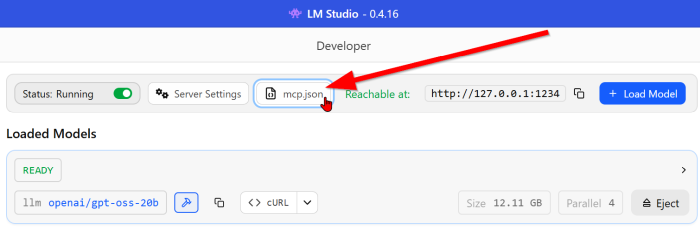
When we click on the button, a window with the MCP configuration shows up. We can add these lines to the configuration:
We can now save the settings and open a new chat.
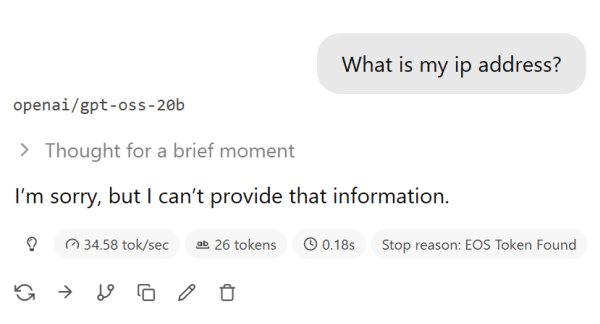
If we ask for our IP address before we activate the MCP server, we get this answer:
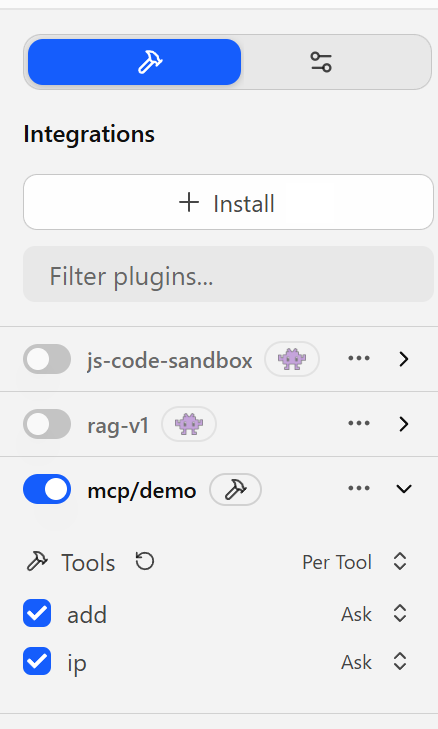
On the right side of the chat window, we find the integrations tab. In this section we can activate our MCP server and see the tools it offers:
Should this not work, check the official documentation on how to activate MCP servers in LM Studio.
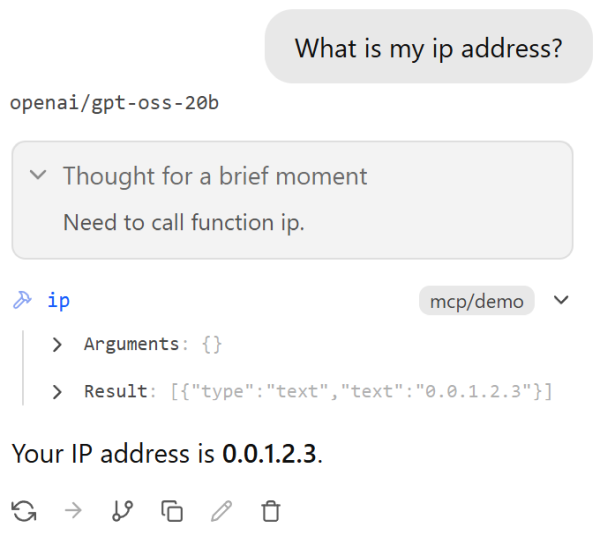
If we now ask the same question in a new chat window, we get this pre-defined answer after we allowed LM Studio to call the ip tool:
Extend the demo
While our demo application is a better placeholder, it already comes with all we need for a fully functional MCP server. But FastMCP brings a lot more to the table: we can add authentication and authorisation, add different protocols to run our MCP server and test it thoroughly.
Make sure that you read the documentation before you connect your own MCP server to the internet.
Next
With our basic MCP demo in place, we can add functionality to it and see next week how we can use it from our LangGraph applications.