#157: Access Your Wi-Fi Passwords on Windows
Windows keeps the passwords around that you used to connect to a Wi-Fi network – long after you can remember them. Let us look how we can use Python to list those saved passwords on your machine.
How to access the passwords in a terminal?
We can run this command in the terminal to get a list of all the Wi-Fi networks Windows knows about:
Scroll down to the end where you get a list of network identifiers:
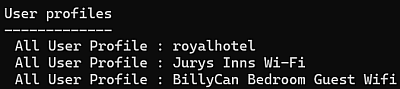
You can then take the Wi-Fi name and run this command to get the password:
Scroll to the line "Key Content" and you see the key stored in Windows for that specific Wi-Fi network.
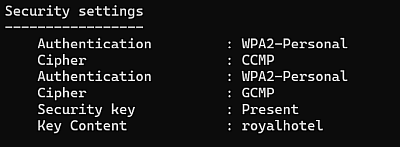
We can repeat that process for each Wi-Fi network. Or we write a little Python script that does this for us. Since this post is part of Python Friday, we go for the second option.
Find the networks
We can run the subprocess module with the netsh command and capture the output:
I extracted the interesting part of parsing the output into its own method, then we are going to reuse it for extracting the Wi-Fi passwords.
Parse the command line output
In Python Friday #98 we covered how to start a different application from our code with the subprocess module. For this post we use the check_output() method then we want to work with the output and extract the interesting information from it. It is a bit like web scrapping but without the web.
The output of netsh is in codepage 1252, so we need to decode it first. Then we run through the lines until we find the line we are interested in. That line has a key and a value that we split at the : and then remove the leading whitespace and the trailing newline of the value.
We put the resulting cleansed value in a list and return it:
Find the passwords
For the list of networks, we run the netsh command to show us the key. Again, we parse the output and search for the key content:
Not every network has a saved password. Therefore, we need to check if we get the expected password or if it is missing.
The result of the method is a dictionary with all networks and their passwords.
Format the output
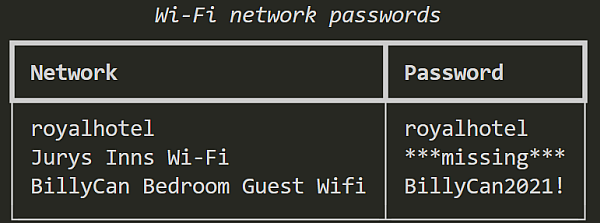
To get a nice output I like to use a Rich Table. That way we do not need to fight with the proper output handling and let the Rich package do the work:
Glue everything together
With these few lines we can put everything together and call the parts in the right order:
Output
If you run the script, you should get a list of your Wi-Fi networks that looks similar to this:
Conclusion
We can use Python not only to scrap web pages for content, but we can also do that with any input format. As long as we figure out how to fix the encoding, we can even work with the output of other applications. The possibilities are endless.