#156: Connect Playwright to BrowserStack and Selenium Grid
If you must run Playwright on a specific browser, you will find a service like BrowserStack a great help. Let's look how we can connect Playwright to BrowserStack and Selenium Grid.
Prerequisites for BrowserStack
For BrowserStack we need an account that can run code on the Automate feature. If you do not already have an account, you can create one for free and test BrowserStack.
Since BrowserStack offers such a large variety of browsers and operating systems, we need to specify what combination we want to use. We can define the desired capabilities in the desired_cap dictionary. That is also the place where we need to set the credentials for BrowserStack – otherwise we get a strange exception.
importjsonimporturllibimportsubprocessfromplaywright.sync_apiimportsync_playwrightfromdotenvimportload_dotenvimportosload_dotenv()desired_cap={# allowed browsers are `chrome`, `edge`, `playwright-chromium`, # `playwright-firefox` and `playwright-webkit`'browser':'chrome',# this capability is valid only for branded `chrome` and `edge` # browsers and you can specify any browser version like `latest`, # `latest-beta`, `latest-1` and so on.'browser_version':'latest','os':'osx','os_version':'catalina','name':'Branded Google Chrome on Catalina','build':'playwright-python-1','browserstack.username':f'{os.getenv("user")}','browserstack.accessKey':f'{os.getenv("accessKey")}'}defrun_session(playwright):version=str(subprocess.getoutput('playwright --version'))clientPlaywrightVersion=version.strip().split(" ")[1]desired_cap['client.playwrightVersion']=clientPlaywrightVersioncap_quoted=urllib.parse.quote(json.dumps(desired_cap))cdpUrl='wss://cdp.browserstack.com/playwright?caps='+cap_quotedbrowser=playwright.chromium.connect(cdpUrl)page=browser.new_page()try:page.goto("https://www.google.co.in/")page.fill("[aria-label='Search']",'Browserstack')locator=page.locator("[aria-label='Google Search'] >> nth=0")locator.click()title=page.title()iftitle=="Browserstack - Google Search":# following line of code is responsible for marking the status # of the test on BrowserStack as 'passed'. You can use this code # in your after hook after each testmark_test_status("passed","Title matched",page)else:mark_test_status("failed","Title did not match",page)exceptExceptionaserr:mark_test_status("failed",str(err),page)browser.close()defmark_test_status(status,reason,page):page.evaluate("_ => {}","browserstack_executor: {\"action\": \"setSessionStatus\","+" \"arguments\": {\"status\":\""+status+"\", \"reason\": \""+reason+"\"}}");withsync_playwright()asplaywright:run_session(playwright)
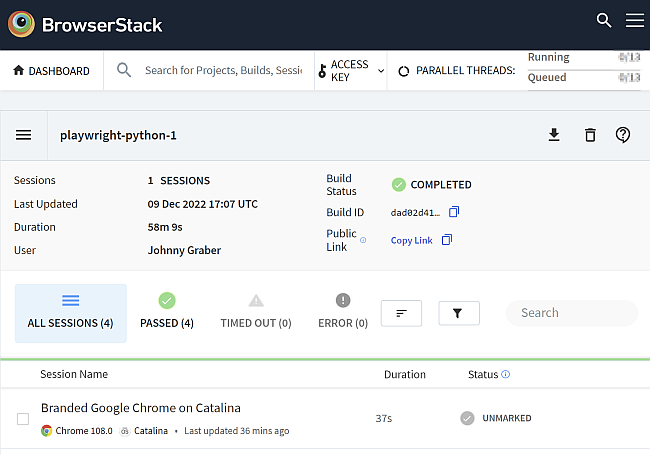
If we run the application, we get a video and a detailed list of the activities on BrowserStack:
Marking the state of the test in BrowserStack did not work with Playwright 1.27 and 1.28. I hope this will work with newer versions.
Prerequisites for Selenium Grid
We need to create a dynamic Selenium Grid on Docker. You find both necessary files to configure the grid in my C# post Run Playwright on Selenium Grid.
When you saved the files, you can run the grid with this command:
You can set the environment variable inside your code, but it is not necessary.
Next
This concludes the Python specific posts on Playwright. As you could see over the last few weeks, there is much similarity between C# and Python when it comes to Playwright. Usually, the code is a little bit simpler on Python, but there are no meaningful differences.