#245: Run FastAPI in Docker & in Production
With our authentication system in place, it is time to put our to-do application into production. For this post I start with a basic Docker container and when that runs, we can add more parts to create a production-ready setup.
Create a requirements.txt
When we want to install our application in a Docker container, we need to have a list with all dependencies. If you not already created a requirements.txt file, you should do that now. We need these packages for our extended to-do application:
Create a minimalistic Docker container
For our first container, we keep things simple and run our FastAPI application with Uvicorn, as we did it so far on our development machine. For that we need a Dockerfile with this content:
This is similar to our Dockerfile for the Python dev container, but we now use the current Python version.
To start our container, I like to add a minimalistic docker-compose.yaml file as well:
We can now create and run our container with this command:
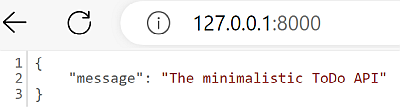
If we open http://localhost:8000/ in a browser, we get the well-known welcome message:
Nginx as a reverse proxy
When we put our container on the internet, it will be attacked immediately. We can do ourselves a big favour and do not put Uvicorn directly on the internet. Instead, we best put nginx as a reverse proxy in front of our application. The nginx team does a lot of work to keep up with attackers and we can reduce our attack surface.
While we would put nginx and our application on the same Linux server, we should use two separate containers in Docker. The configuration is much simpler that way and if nginx or Uvicorn fails, Docker can restart the containers automatically.
We need to create a configuration file in server/nginx.conf for nginx that lets us forward all the traffic to our app container:
In our docker-compose.yaml file, we add the nginx container and remove the ports from our application container – we only want to access the API through nginx:
Line 15 puts our nginx.conf file into the /etc/nginx/conf.d directory so that nginx knows about our redirects.
We can now rebuild the containers and start them with these two commands:
If we now access https://localhost:80 with HTTPie, it shows us the message again – on port 80 behind nginx:
Ready for production?
We are nearly there to put our API into production, but first we need to address these two points:
- We need an SSL certificate to run our API over https.
- Do we stay with SQLite, or may we need to switch to PostgreSQL?
Point 1 is a must, especially when we need to send passwords over the internet to log in. We can use certbot to get a certificate from Let’s Encrypt. There are container images like linuxserver/swag that offer an integrated solution that you can put in place of the nginx container.
Point 2 depends on the usage patterns of our API. SQLite may be enough for much more users than you may think. But when our API must handle many simultaneous writes, we may find the blocking behaviour as a too big impact. In this case we can add a PostgreSQL container and use the asyncpg driver.
If you stay on SQLite, you must put the database somewhere else than into the container. Otherwise, your data is lost as soon as you recycle your container.
Since the best-practices continuously change, you should check the deployment section of the FastAPI tutorial regularly. There are many additional tips that may help you to successfully run your API in production. I strongly recommend to keep an eye on the OWASP API Security Top 10 Risks list and check that you keep up with their recommendations.
Next
With our containers we have a good starting point to put them into production. Make sure that you update your dependencies on a regular basis and check your logs for suspicious behaviour. Should you want to run your API directly on a Linux server, you can find many tutorials on how to do exactly that.
Next week we explore a few helpful tricks with FastAPI before we end this series.