#154: Figure Out Where Playwright Went Wrong
In this post we explore 3 helpful ways to figure out what went wrong if Playwright cannot find the elements we are looking for.
Activate tracing
Playwright offers a great tracing tool that helps you to figure out where exactly something went wrong. We can activate the collection of the necessary information with this code:
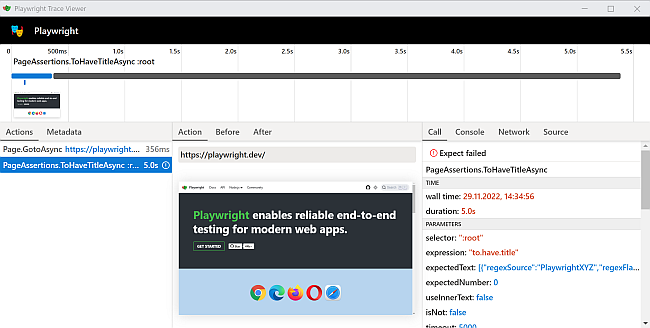
You can use the created *.zip file and run it through the trace viewer:
Inside the trace viewer you can work with the shadow DOM and use your developer tools as you would in a regular browser.
Create videos
Playwright can create videos of our interactions with a web page. That is a great help should we encounter a strange behaviour and need to see exactly what happened. We can create the video with this code:
The created videos will be in the folder videos.
Take screenshots
If we only need to know how a page looked at a specific time, we can use the screenshot() method to create a screenshot:
The first method call captures the web page as we would see it in the browser, while the second method call with the option full_page=True captures the whole web page, including the parts that are only reachable when we scroll through the page.
Next
If something does not work as we expect it, tracing and videos will make all the difference to figure out what went wrong. Next week we can take our newly gained knowledge of Playwright and revisit the web crawling problem for the WordPress statistics.