#142: First Steps With Selenium
The more JavaScript a web site has, the more makes it sense to access it with a web browser. Over the next weeks we explore how Selenium can help us to automate a web browser to get the data from a web page we are interested in.
Installation
Selenium is a well-known tool for end-to-end testing. While we can use Selenium for that, we can also use it as a tool for web scraping on sites that are full of JavaScript. We can install Selenium with this command:
This should install version 4.4.3 or newer. There are many breaking changes between version 3 and 4. Therefore, make sure that you use version 4 to follow along with the next few posts.
Install a driver
Selenium needs something to talk to the browser. That something is a driver that we need to download and put somewhere where our Python code can access it. For Firefox, we can go to the GitHub project for geckodriver and download the file geckodriver-v0.31.0-win64.zip:
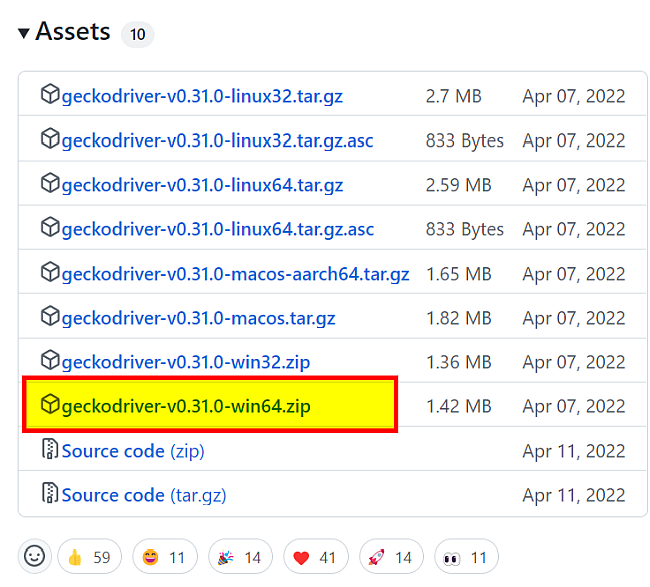
We can unzip the downloaded driver and put it next to our Python script:
Run Firefox from Selenium
With our downloaded driver in place, we can use it to create a service instance. That service goes into the Selenium driver with which we now can control our Firefox browser:
When we run this script, it should open Firefox, go to duckduckgo.com and print the title of the start page:
DuckDuckGo — Privacy, simplified.
Chrome & Edge Chrome
While those browsers are very close when it comes to the shared source code, they need different drivers to work. You can find the links to the drivers in the Selenium documentation.
Next
We now have a working Selenium installation. Before we dive into the features of Selenium, we take a closer look at a simpler way to get all those drivers. Keeping them up to date is a task that takes too much time.