#71: A Progress Bar for Your Python Script
Python is a great fit for maintenance tools. But when they run for a few minutes without any info to the user, one does not know it they are still doing their job or if they stopped. Let us look on a simple way to make your scripts more user friendly.
Installation
Progressbar for Python is a little helper that draws a progress bar to the command line. I like this project because we can integrate it in our scripts without much effort. You can install it with this pip command:
Basic usage
We need to import progressbar (not progressbar2) in our code and wrap progressbar around the list (or any iteratable) that represents our work. Inside the for-loop we can do the work as usual and progressbar will do its magic to create a visual feedback for the user:
If we run this script it looks like this:
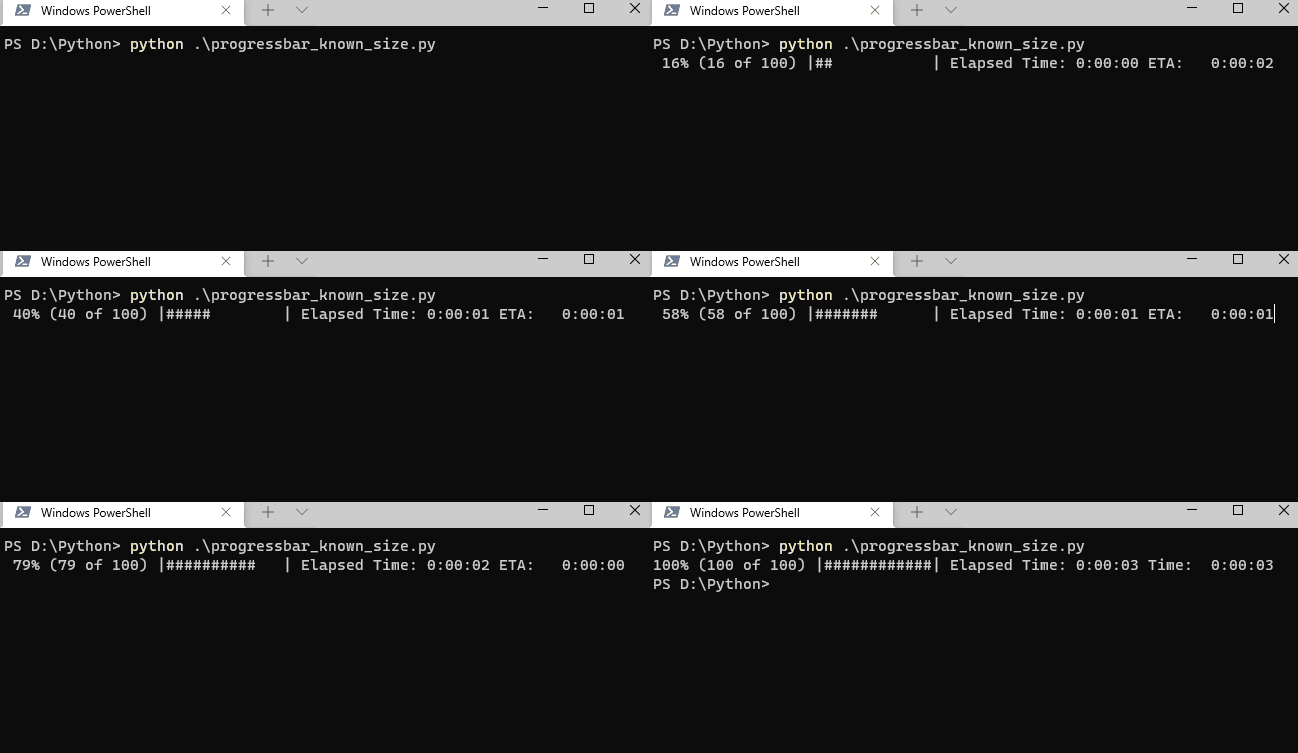
The code above is really all it takes to create this nice feedback visual. The example looks so simple that you may have a hard time to adapt that to your code – at least I needed some time until it clicked. Here is a little bit more code that show you how you can use the progress bar with a script that processes files in my D:\Python folder:
There are more options and a longer explanation on what is going on in the documentation.
For unknown sizes of work
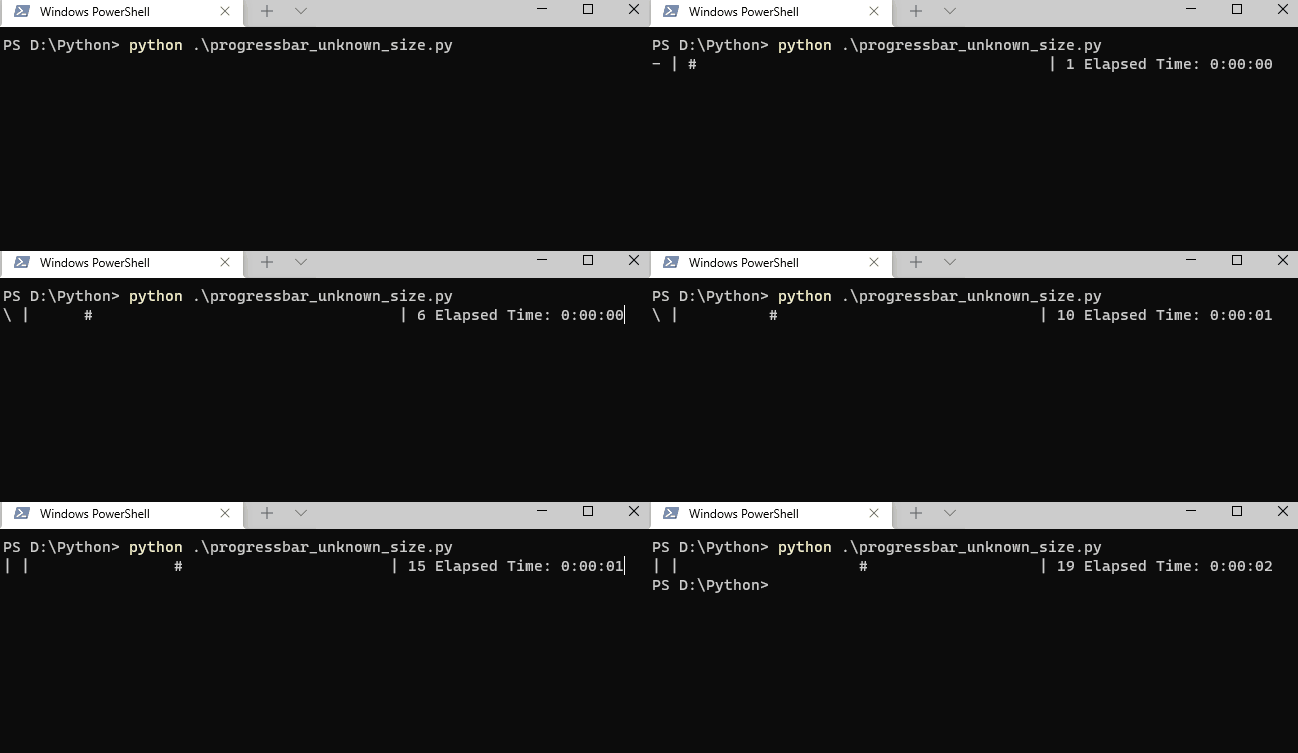
Sometimes we do not know how much work there is, or we have multiple loops to work with. In this case we assign progressbar to a variable and tell it that we do not know the max value. Whenever we have done an increment of our work, we can use this variable to update the progress bar:
When you run this code the progress bar looks a little bit different but otherwise works the same way:
Conclusion
With 2 to 3 lines more code you can turn your scripts into something much more user-friendly and show how much work your script has processed. I can strongly suggest you try this package with your longer running scripts.